
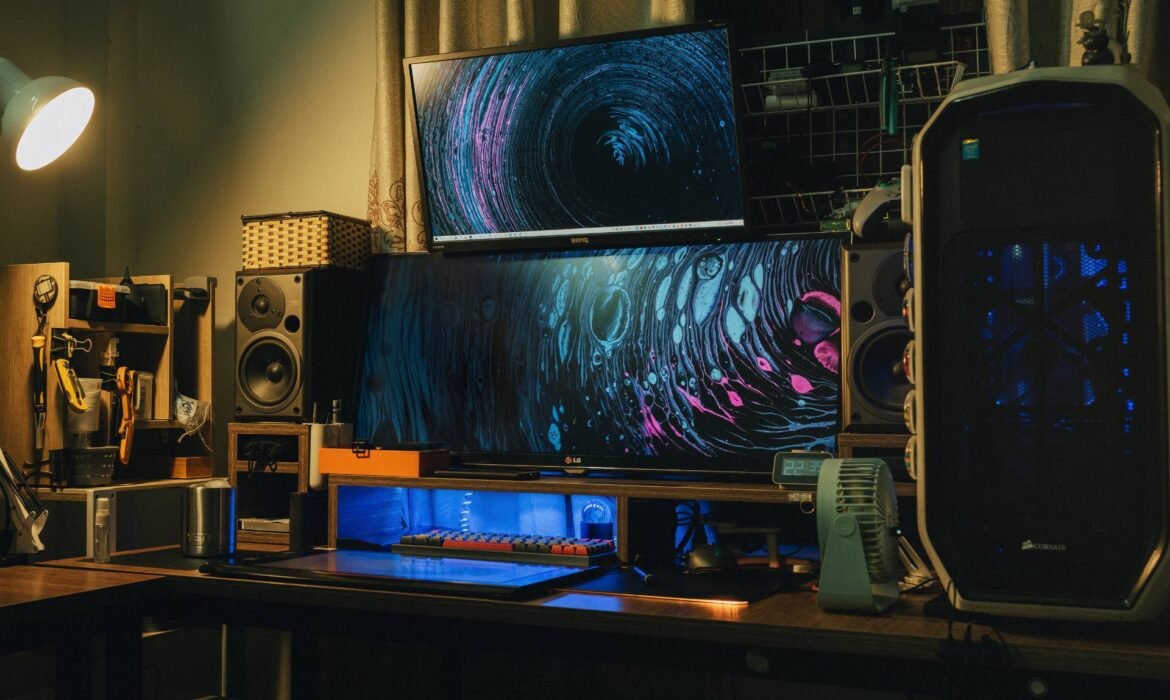
Tips to Build a High-Performance Office Setup on Budget

Introduction: Why a Smart Office Setup Matters More Than Ever
In 2025, the way we work has transformed. Businesses, startups, freelancers, and remote teams need powerful workspaces that boost productivity — but not everyone can invest in premium office infrastructure right away.
The good news is, you don’t need to spend a fortune to build a high-performance office setup. With smart planning, the right equipment, and cost-effective solutions, you can create a workspace that’s efficient, professional, and future-ready.
This blog will guide you step-by-step on how to set up a budget-friendly yet high-performance office, perfect for teams or individuals.
1. Define Your Workspace Needs Before Spending
Before you invest in any device or furniture, clarify what your office actually needs. A developer’s setup will look different from a designer’s or a sales team’s.
Ask yourself:
- How many employees or workstations will you set up?
- What kind of work will be done — design, development, content, customer service, or management?
- Which software or hardware requirements are essential for your team?
This clarity helps avoid unnecessary spending and ensures your investment aligns with your actual needs.
2. Choose the Right Laptop or Desktop for Your Workload
Your computer system is the backbone of your office. For a high-performance setup on a budget, choose systems that offer great value:
- For basic operations like emails, documentation, and calls, mid-range laptops with Intel i5 or Ryzen 5 processors are sufficient.
- For designers and developers, systems with Intel i7/i9 or Ryzen 7/9 and SSD storage provide smooth performance.
- For heavy workloads like 3D rendering or video editing, workstations with dedicated GPUs (NVIDIA RTX or AMD Radeon) are ideal.
Consider refurbished or business-grade laptops with warranty to cut costs while maintaining performance. This is often a smart alternative to buying brand-new high-end devices.
3. Invest in Ergonomic and Space-Efficient Furniture
An often-overlooked part of productivity is comfort. Even the most powerful machine won’t help if your team is uncomfortable.
Choose:
- Ergonomic chairs that support posture and reduce fatigue during long working hours.
- Height-adjustable desks or space-saving workstations to make the office look clean and organized.
- Cable management solutions to reduce clutter and improve focus.
A minimal, organized setup not only saves money but also boosts morale and efficiency.
4. Use Dual Monitors or Large Screens for Better Productivity
For roles like development, design, data analysis, or content creation, dual monitors can be a game-changer.
Two mid-range monitors often cost less than one high-end ultra-wide display and can increase productivity by up to 30%. Employees can multitask effectively without constantly switching between tabs.
If the budget is tight, consider starting with one large screen (24–27 inches) and adding more later as your business grows.
5. Optimize Accessories Instead of Overspending
Accessories enhance the workflow but can become a hidden cost if not planned carefully.
Focus on:
- Mechanical or soft-touch keyboards for long typing sessions.
- Wireless or silent mice for smooth navigation.
- Basic webcams and headsets for meetings and remote communication.
- Docking stations or USB hubs if multiple connections are needed.
Buy accessories in bulk or choose good mid-range brands. Avoid luxury accessories unless absolutely required.
6. Use Cloud Software and Free Productivity Tools
One of the smartest ways to reduce IT costs is by shifting to cloud-based software instead of buying expensive licenses.
- Use Google Workspace or Microsoft 365 for communication and file sharing.
- Project management can be handled through tools like Trello, Asana, or Notion.
- For designers and creators, free tools like Canva, Figma Starter, or DaVinci Resolve can work well in the beginning.
Cloud software also reduces the need for powerful local hardware for every user — helping you save significantly on infrastructure.
7. Focus on Fast Internet and Network Infrastructure
A fast, reliable internet connection is the lifeline of a modern office. Laggy calls, delayed uploads, and slow downloads can ruin productivity.
Invest in:
- A high-speed fiber connection with good upload speeds.
- A stable router with dual-band or mesh Wi-Fi for uninterrupted connectivity.
- Wired connections for workstations that need high bandwidth and low latency.
Even with budget constraints, prioritize a strong network. It’s one of the best investments you can make for your office setup.
8. Plan for Power Backup and Surge Protection
Unexpected power cuts can damage hardware and disrupt work.
- Use UPS (Uninterruptible Power Supply) systems for desktops.
- Invest in surge protectors to safeguard equipment from sudden spikes.
- If possible, have a small inverter backup for critical systems like servers or routers.
This helps protect your investment and keeps your team working smoothly even during outages.
9. Adopt Energy-Efficient Equipment
A high-performance setup doesn’t have to increase your electricity bills.
Look for:
- Energy Star-rated laptops and monitors
- LED lighting instead of traditional bulbs
- Smart power strips and timers to cut energy waste
Over time, energy-efficient choices can save your business a significant amount.
10. Keep Your Setup Minimal and Modular
A budget-friendly high-performance setup should be scalable. Start small, with only what you need, and expand gradually.
Avoid cluttering your space with unnecessary gadgets or oversized furniture. A clean, modular setup makes it easier to upgrade systems, shift teams, or expand operations without major expenses.
11. Leverage IT Equipment Rentals for Flexibility
While this is an informational guide, one of the smartest strategies many businesses use is IT rentals.
Instead of purchasing high-end systems upfront, renting laptops, desktops, or workstations allows businesses to:
- Access the latest hardware at lower costs
- Scale up or down based on project needs
- Avoid depreciation and maintenance hassles
This is particularly useful for startups and growing teams that need flexibility without committing to large capital expenses.
12. Don’t Overlook Security and Data Protection
Building a powerful setup isn’t just about hardware — security matters too.
- Use strong passwords and multi-factor authentication on all devices.
- Install reliable antivirus and firewall software.
- Keep systems updated regularly to avoid vulnerabilities.
- Use encrypted cloud storage for sensitive documents.
Even on a budget, basic cybersecurity measures can protect your business from costly breaches.
13. Set Up a Proper Backup System
Data loss can be disastrous. A solid backup strategy is crucial even for small offices.
- Use external SSDs or NAS systems for local backups.
- Schedule automatic cloud backups for important files.
- Test your recovery process periodically to ensure it works.
Data backups provide peace of mind and protect your operations from unexpected failures.
14. Lighting and Ambience for Productivity
Good lighting can transform your workspace. Natural light is ideal, but if that’s not possible:
- Use LED panels with warm white light.
- Avoid harsh overhead lighting that causes eye strain.
- Consider desk lamps for focused work areas.
A comfortable, well-lit environment boosts energy levels and concentration, even in budget setups.
15. Maintain Your Equipment Regularly
To get the most out of your investment, regular maintenance is essential:
- Clean laptops and desktops to prevent dust build-up.
- Keep software updated and clear unnecessary files.
- Check cables and connections periodically.
- Replace faulty accessories early to avoid bigger issues later.
Preventive care extends the lifespan of your devices and reduces repair costs in the long run.
16. Train Your Team to Use Equipment Smartly
A smart setup is only as effective as the people using it.
- Train employees on basic troubleshooting and best practices.
- Encourage energy-saving habits, like turning off unused equipment.
- Promote organized workspace culture to reduce clutter.
A well-trained team can keep your setup running efficiently without frequent external support.
17. Think Long-Term: Plan for Upgrades
A budget setup doesn’t mean compromising on the future. Choose devices and furniture that allow for easy upgrades.
- Laptops with upgradeable RAM or SSDs
- Modular desks that can expand
- Routers that support future standards
This helps your office grow without needing a complete overhaul.
18. Reuse and Repurpose Where Possible
You don’t always need to buy new. Reusing existing hardware or purchasing refurbished business-grade laptops can be a great way to save costs without sacrificing performance.
For example:
- A used workstation with SSD and upgraded RAM can perform almost like a new one.
- Old monitors can be used as secondary screens.
- Good quality furniture can be sourced at a fraction of the price.
This sustainable approach is both budget-friendly and environmentally conscious.
19. Keep Your Office Setup Flexible for Remote Work
Even if your team works on-site, flexibility is key.
- Choose lightweight laptops for portability.
- Use cloud tools for remote access.
- Set up VPNs for secure remote logins.
A hybrid-friendly setup keeps your team agile and ready for any shift in work trends.
20. Final Touch: Make It Inspiring
An inspiring workspace doesn’t require a big budget.
- Add plants or simple decor to make the space more inviting.
- Use color themes or motivational quotes to create positive vibes.
- Keep the setup organized and clutter-free.
A pleasant environment enhances employee satisfaction and focus — which directly impacts productivity.
How to Get Maximum GPU Performance Without Overheating

In today’s world of AI workloads, high-end gaming, and 3D rendering, your GPU (Graphics Processing Unit) is the heart of performance. Whether you’re a gamer, designer, or developer, you rely on your GPU to deliver smooth, fast, and reliable output.
But there’s a catch — pushing your GPU to its limits often leads to overheating, performance throttling, and even hardware damage if not managed properly. The key is to strike the perfect balance between maximum performance and optimal temperature control.
In this detailed guide, we’ll explore how to optimize your GPU performance without overheating, covering hardware setup, cooling techniques, software tweaks, and maintenance tips that work in 2025.
1. Understanding GPU Performance and Heat Generation
Your GPU is essentially a miniature supercomputer — handling millions of calculations per second to render images, process data, or train AI models. This level of performance naturally generates heat.
1.1 Why GPUs Overheat
- High load: Running demanding games, rendering videos, or training AI models.
- Poor airflow: Inadequate cooling inside the system case.
- Dust buildup: Blocks airflow and increases internal temperature.
- Thermal paste wear: Reduced heat transfer from GPU die to cooler.
- Overclocking: Pushing the GPU beyond factory limits.
If not addressed, these issues cause thermal throttling, where the GPU automatically lowers its speed to prevent damage — directly impacting performance.
2. Ideal GPU Temperature Range
Maintaining a healthy temperature range ensures long-term performance.
| Usage Type | Ideal GPU Temperature |
|---|---|
| Idle/Desktop Work | 30°C – 50°C |
| Gaming / Rendering | 60°C – 80°C |
| Heavy AI / ML / GPU Computing | 70°C – 85°C |
| Danger Zone (Throttle / Damage) | 90°C+ |
3. Optimize Airflow in Your System
Proper airflow is one of the most effective ways to manage GPU temperature.
3.1 Case Design Matters
- Choose a spacious cabinet with multiple fan mounts.
- Ensure there’s intake airflow from the front and exhaust at the back/top.
- Avoid placing your system in enclosed spaces like under desks or inside cabinets.
3.2 Fan Placement
Use this setup for optimal cooling:
- Front Fans: Intake (cool air in)
- Top/Rear Fans: Exhaust (hot air out)
- Bottom Fans (if available): Additional intake to improve airflow.
3.3 Cable Management
Tidy cables = better airflow. Use zip ties or modular PSU cables to keep your case clutter-free.
4. Upgrade or Optimize Your Cooling System
If your GPU runs hot even after cleaning and managing airflow, it’s time to upgrade your cooling.
4.1 GPU Fan Settings
- Use tools like MSI Afterburner, EVGA Precision X1, or ASUS GPU Tweak to customize fan curves.
- Set fan speed to ramp up faster as temperature increases.
4.2 Thermal Paste Replacement
Over time, thermal paste between the GPU and heatsink degrades. Replacing it with a high-quality thermal compound like Arctic MX-6 or Thermal Grizzly Kryonaut can reduce GPU temps by up to 10°C.
4.3 Add Case Fans or Liquid Cooling
- Add more high-airflow fans (Corsair, Noctua, Cooler Master).
- For extreme workloads, consider AIO (All-in-One) GPU liquid coolers for stable temperature control.
5. Optimize Software & Power Settings
Your software and system settings have a direct impact on GPU load and heat.
5.1 Adjust Power Limits
In tools like MSI Afterburner, you can slightly reduce your power limit (to 90–95%) — lowering temperature with minimal impact on performance.
5.2 Undervolting
Undervolting reduces the GPU’s voltage while maintaining clock speed — meaning lower heat output with similar performance.
- Tools like AMD Radeon Software or NVIDIA Control Panel can help.
- Always test stability using benchmarks after undervolting.
5.3 Update Drivers
Outdated drivers can cause inefficient GPU usage and overheating.
Keep your NVIDIA GeForce Experience or AMD Adrenalin drivers updated regularly for performance and cooling improvements.
6. Keep Your GPU and System Clean
Dust is a silent performance killer. It clogs fans, blocks airflow, and insulates heat.
6.1 Cleaning Routine
- Use compressed air or a blower to clean vents and fans every 2–3 months.
- Clean GPU heatsinks carefully using a soft brush.
- Avoid liquid cleaners unless specifically made for electronics.
6.2 Monitor Temperatures
Use real-time monitoring tools like:
- HWMonitor
- GPU-Z
- NZXT CAM
- MSI Afterburner (with on-screen overlay)
7. Manage Ambient Temperature
Your room’s environment directly affects GPU performance.
7.1 Ideal Room Conditions
- Keep the room temperature below 30°C.
- Use air conditioning or ventilation during intensive GPU workloads.
- Avoid direct sunlight or heat sources near your PC setup.
7.2 Placement Tips
- Don’t place your system against walls — leave at least 6–8 inches of clearance for airflow.
- Avoid keeping it on carpeted floors (it traps heat and dust).
8. Optimize Game and Application Settings
Your GPU doesn’t always need to run at 100%. Smart optimization reduces unnecessary load.
8.1 In-Game Graphics Settings
- Lower Anti-Aliasing, Shadows, and Post-Processing Effects.
- Use DLSS (NVIDIA) or FSR (AMD) to maintain FPS at lower GPU usage.
- Cap FPS to your monitor’s refresh rate — prevents overworking the GPU.
8.2 Rendering & AI Workloads
If you’re using your GPU for creative or AI tasks:
- Enable GPU scheduling in Windows for better efficiency.
- Limit VRAM usage in rendering tools like Blender or Adobe After Effects.
- Schedule heavy workloads during cooler hours of the day.
9. Power Supply & Stability Check
A weak or unstable PSU (Power Supply Unit) can cause overheating due to irregular voltage.
Checklist for GPU-Friendly Power Setup:
- Use a high-efficiency PSU (80+ Gold or Platinum).
- Ensure proper wattage — typically 650W+ for RTX 4070/4080-class GPUs.
- Use dedicated PCIe power cables, not daisy-chained ones.
Stable power equals consistent cooling and performance.
10. External Cooling Accessories
Modern setups allow for additional cooling options beyond your case.
Top Accessories for Extra Cooling:
- External GPU stands with built-in fans.
- Laptop cooling pads for mobile GPUs.
- PCIe fan brackets to direct airflow toward the GPU.
- VRM heatsinks for temperature balance across components.
These accessories are cost-effective and significantly improve long-term GPU stability.
11. Smart Monitoring and Automation
In 2025, smart tools and AI-based software can automatically balance performance and thermals.
AI-Based Cooling Tools:
- Corsair iCUE AI Cooling automatically adjusts fan speeds based on GPU load.
- NZXT CAM Smart Mode analyzes temperature trends and predicts heat spikes.
- MSI Center dynamically manages fan curves for real-time optimization.
These tools ensure maximum efficiency with minimal manual intervention.
12. When to Consider a GPU Upgrade
If your GPU constantly overheats even after optimizing cooling and power, it may be time for an upgrade.
Signs You Need an Upgrade:
- Frequent throttling or shutdowns.
- Temperature consistently above 85°C.
- Inability to handle newer AI/gaming workloads.
For professionals in AI, design, or gaming, upgrading to the latest NVIDIA RTX 4000/5000 series or AMD Radeon 7000 series ensures better performance with enhanced power efficiency and cooling technology.
If you don’t want to invest heavily upfront, explore high-performance GPU workstations or laptops on rent from Rental Plaza — ideal for short-term projects, rendering, or AI research workloads across India.
13. Final Thoughts
Getting maximum GPU performance without overheating is all about balance — between cooling, power, and workload management.
By maintaining clean airflow, optimizing power settings, using proper thermal paste, and leveraging smart software tools, you can push your GPU’s limits safely and efficiently.
Remember — a cool GPU is a happy GPU. With the right setup, you’ll enjoy smoother performance, longer lifespan, and stable operation for years to come.
If you’re a developer, designer, or AI professional looking for powerful GPU-based systems, check out Rental Plaza for workstations and laptops equipped with NVIDIA RTX GPUs, available PAN-India for corporate and creative needs.

