
Laptop Internet Slow but WiFi Strong – Fix Guide
It can be confusing and frustrating when your laptop shows a strong WiFi signal but the internet speed is still slow. You may notice pages taking longer to load, videos buffering constantly, or downloads moving at a very low speed despite full network bars. This issue is quite common and usually points to underlying problems that are not directly related to WiFi signal strength.
A strong WiFi signal only indicates that your laptop is well connected to the router, but it does not guarantee fast internet speed. Several factors such as network congestion, background applications, outdated drivers, incorrect settings, or router limitations can affect actual performance. This guide will help you understand the causes and provide practical solutions to fix slow internet on your laptop.
Understanding the Difference Between WiFi Signal and Internet Speed
Many users assume that strong WiFi automatically means fast internet, but these are two different things. WiFi signal strength measures how well your device is connected to the router, while internet speed depends on the bandwidth provided by your internet service provider and how efficiently your system uses it.
Even with full signal strength, slow speeds can occur if the network is overloaded, the router is outdated, or your laptop is not configured properly. Recognizing this difference is essential for troubleshooting the issue correctly.
Checking Internet Speed
Before applying any fixes, it is important to test your internet speed. This helps determine whether the problem lies with your laptop or the network itself.
Running a speed test can show your download speed, upload speed, and latency. If the results are significantly lower than your subscribed plan, the issue may be with the network or internet provider. If the speed is normal on other devices but slow on your laptop, the problem is likely device-specific.
Restarting Your Laptop and Router
A simple restart can often resolve many connectivity issues. Temporary glitches in the system or router can affect performance and lead to slow internet speeds.
Restarting your laptop clears temporary files and resets network settings, while rebooting the router refreshes the connection to your internet provider. This basic step should always be tried first before moving to advanced solutions.
Closing Background Applications
Background applications can consume a significant portion of your internet bandwidth. Software updates, cloud syncing, streaming apps, and browser tabs can slow down your connection without you realizing it.
Closing unnecessary applications ensures that your laptop uses available bandwidth efficiently. This can instantly improve browsing speed and reduce lag.
Disabling Automatic Updates
Automatic updates for the operating system, apps, or antivirus programs can run in the background and use a large amount of bandwidth.
Disabling or scheduling updates for a later time can prevent them from interfering with your internet usage. This is especially useful when you need a stable and fast connection for work or streaming.
Updating Network Drivers
Outdated or corrupted network drivers can affect internet performance. Drivers help your laptop communicate with the network hardware, and any issue with them can result in slow speeds.
Updating network drivers ensures better compatibility and improved performance. It also fixes bugs that may be causing connectivity issues.
Adjusting Power Management Settings
Power-saving settings can limit the performance of your network adapter. When enabled, the system may reduce network activity to conserve battery life, which can lead to slower internet speeds.
Switching to a high-performance power mode allows the network adapter to function at full capacity, improving speed and stability.
Changing DNS Settings
DNS (Domain Name System) translates website names into IP addresses. Slow or inefficient DNS servers can delay website loading times.
Switching to a faster and more reliable DNS can improve browsing speed. This simple change often results in quicker page loading and smoother internet performance.
Limiting Connected Devices
If multiple devices are connected to the same network, bandwidth is shared among them. This can slow down internet speed on your laptop even if the WiFi signal is strong.
Reducing the number of active devices or limiting bandwidth usage on other devices can help improve performance on your laptop.
Checking Router Placement
The position of your router can impact network performance. Even with a strong signal, interference from walls, furniture, or electronic devices can affect speed.
Placing the router in a central and open location ensures better distribution of the signal and reduces interference.
Switching WiFi Bands
Modern routers offer both 2.4GHz and 5GHz bands. The 2.4GHz band provides wider coverage but slower speeds, while the 5GHz band offers faster speeds with shorter range.
Switching to the 5GHz band can improve internet speed if your laptop is within range. This is especially useful for streaming, gaming, and downloading large files.
Clearing Browser Cache
Over time, browser cache and cookies can accumulate and slow down internet performance. This can affect page loading speed and overall browsing experience.
Clearing cache and cookies regularly ensures smoother browsing and faster loading times.
Disabling VPN or Proxy
Using a VPN or proxy can slow down internet speed due to additional encryption and routing processes.
Disabling these services temporarily can help determine if they are causing the slowdown. If speed improves, consider using a faster or more reliable service.
Checking for Malware
Malware or unwanted programs can use your internet connection in the background, reducing available bandwidth.
Running a security scan can help detect and remove such threats, restoring normal internet speed.
Resetting Network Settings
Incorrect network configurations can cause connectivity issues. Resetting network settings restores default configurations and removes any faulty settings.
This step can resolve persistent problems and improve overall network performance.
Using a Wired Connection
If WiFi performance remains slow, switching to a wired connection can provide more stable and faster internet. Ethernet connections are less affected by interference and offer consistent speeds.
This is particularly useful for tasks that require high-speed internet, such as gaming or video conferencing.
Upgrading Router or Internet Plan
Sometimes the issue lies with outdated hardware or insufficient bandwidth. Older routers may not support modern speeds, and lower internet plans may not meet current usage demands.
Upgrading your router or internet plan can significantly improve performance and ensure smoother connectivity.
Preventing Future Internet Issues
Regular maintenance can help prevent slow internet problems. Keeping software updated, monitoring network usage, and maintaining a secure connection can ensure consistent performance.
Avoiding network overload and using reliable hardware can also improve long-term internet speed.
Conclusion
Experiencing slow internet on your laptop despite a strong WiFi signal can be frustrating, but it is usually caused by manageable issues. From background applications and outdated drivers to network congestion and router limitations, multiple factors can affect performance.
By identifying the root cause and applying the right solutions, you can significantly improve your internet speed and enjoy a smoother online experience. Regular maintenance and proper configuration will help ensure that your laptop delivers consistent and reliable performance.
Laptop Touchpad Not Working – Step-by-Step Troubleshooting Guide
Introduction
A laptop touchpad is one of the most essential input devices for navigating your computer. It allows users to move the cursor, click, scroll, and perform gestures without the need for an external mouse. However, many laptop users occasionally face the frustrating problem of the touchpad not working properly or becoming completely unresponsive.
When the touchpad stops responding, it can make basic tasks such as browsing, editing documents, or navigating applications difficult. Fortunately, in most cases, the issue is not caused by serious hardware damage. Many touchpad problems occur due to simple settings, temporary software glitches, outdated drivers, or accidental disabling of the touchpad feature.
Understanding the possible causes and following a structured troubleshooting process can help restore touchpad functionality quickly and avoid unnecessary repairs.
Common Signs That the Touchpad Is Not Working
Before fixing the issue, it is important to identify the symptoms. The touchpad may stop responding entirely, meaning the cursor does not move when you touch the surface. In some cases, the cursor may move but clicking or scrolling may not work properly.
Another common symptom is when the touchpad suddenly stops working after a system update or software installation. Some users may also notice delayed cursor movement, inconsistent scrolling, or gestures not functioning correctly. Recognizing these symptoms can help narrow down the root cause of the problem.
Step 1: Check If the Touchpad Is Accidentally Disabled
One of the most common reasons for a non-working touchpad is that it has been accidentally disabled. Many laptops include a keyboard shortcut that allows users to enable or disable the touchpad quickly. This feature is useful when using an external mouse but can sometimes be activated unintentionally.
Look for a key on the keyboard with a touchpad icon, usually combined with the Fn key. Pressing the appropriate key combination may instantly restore touchpad functionality. If the touchpad starts working again, the issue was simply caused by accidental disabling.
Step 2: Restart the Laptop
A simple restart can often resolve temporary system glitches that affect hardware components. When the operating system runs for a long time without restarting, background processes may interfere with device functionality.
Restarting the laptop refreshes system processes, resets drivers, and clears temporary errors. After restarting, check whether the touchpad is functioning normally.
Step 3: Check Touchpad Settings in System Preferences
Operating systems include settings that allow users to control touchpad behavior. Sometimes these settings may change automatically due to updates or software installations.
Open the device settings and locate the touchpad section. Ensure that the touchpad is enabled and configured correctly. You can also adjust sensitivity levels, scrolling options, and gesture settings to ensure optimal performance.
Step 4: Disconnect External Mouse Devices
When an external mouse is connected to the laptop, some systems automatically disable the touchpad to prevent accidental input. If the touchpad stops working while a USB mouse is connected, disconnect the mouse and test the touchpad again.
In certain cases, the system settings may also include an option that disables the touchpad when a mouse is detected. Disabling this option can allow both devices to work simultaneously.
Step 5: Update or Reinstall Touchpad Drivers
Drivers are software components that allow the operating system to communicate with hardware devices. If the touchpad driver becomes outdated, corrupted, or incompatible with the current operating system version, the touchpad may stop working.
Updating the driver through device management tools can resolve many touchpad issues. If updating does not fix the problem, uninstalling and reinstalling the driver may restore proper functionality.
Step 6: Check for Operating System Updates
System updates often include improvements and bug fixes that enhance hardware compatibility. If the touchpad stopped working after a recent update, installing the latest system patches may resolve the issue.
Keeping the operating system updated ensures that the system has the most recent drivers and performance improvements available.
Step 7: Clean the Touchpad Surface
Dirt, dust, oil, or moisture on the touchpad surface can interfere with touch sensitivity. If the touchpad is not responding accurately, cleaning the surface may help restore functionality.
Use a soft microfiber cloth to gently wipe the touchpad. Avoid using excessive liquid cleaners, as moisture can damage internal components. Keeping the touchpad clean improves responsiveness and prevents input errors.
Step 8: Check for Physical Damage
If the touchpad does not respond even after adjusting settings and updating drivers, there may be a hardware issue. Physical damage can occur if the laptop is dropped, exposed to liquid spills, or subjected to heavy pressure.
Signs of physical damage include cracks, unusual surface texture, or inconsistent cursor movement. In such cases, professional repair may be necessary.
Step 9: Boot the Laptop in Safe Mode
Safe mode starts the operating system with minimal drivers and background services. This helps determine whether the touchpad problem is caused by third-party software or system conflicts.
If the touchpad works normally in safe mode, the issue is likely caused by recently installed software or system settings. Removing or updating the problematic software may resolve the issue.
Step 10: Perform System Diagnostics
Many laptop manufacturers include built-in diagnostic tools that test hardware components. Running these diagnostic tools can help identify whether the touchpad hardware is functioning properly.
If the diagnostic test detects a hardware problem, it may recommend repair or replacement of the touchpad module.
Step 11: Reset the Laptop Settings
If the touchpad problem started after installing new applications or making major system changes, resetting system settings may help restore normal functionality.
Resetting the system does not always require deleting files, but it reverts certain settings to their default values. This can resolve configuration issues affecting touchpad operation.
Step 12: Use an External Mouse as a Temporary Solution
If the touchpad remains unresponsive while troubleshooting the issue, connecting an external mouse can allow you to continue using the laptop. This is a practical temporary solution while diagnosing the problem or waiting for repair.
External mice provide full navigation control and can help users continue working without interruption.
Preventive Tips to Avoid Touchpad Problems
Preventing touchpad issues is often easier than fixing them. Keeping the laptop clean and avoiding spills can protect the touchpad from damage. Using the laptop on stable surfaces also prevents pressure damage that may affect internal components.
Regularly updating system software and drivers ensures compatibility with hardware devices. Avoid installing unknown or untrusted software that may interfere with system settings.
Importance of Proper Laptop Maintenance
Routine laptop maintenance plays an important role in ensuring smooth hardware performance. Cleaning the laptop, managing software updates, and monitoring system performance can prevent many common issues.
Users who rely heavily on their laptops should periodically check device settings and hardware components to ensure everything is functioning properly.
When Professional Repair Is Required
If none of the troubleshooting steps restore touchpad functionality, professional repair may be necessary. A technician can inspect the laptop, test internal connections, and replace damaged components if required.
Attempting complex repairs without proper knowledge can lead to further damage, so professional assistance is recommended for hardware-related problems.
Conclusion
A non-working laptop touchpad can disrupt productivity and make simple tasks difficult. However, many touchpad problems are caused by minor issues such as disabled settings, outdated drivers, or temporary system glitches. By following a structured troubleshooting process, users can often resolve the problem quickly without professional assistance.
Understanding the possible causes and maintaining proper laptop care can help prevent future touchpad issues. With the right troubleshooting steps and regular maintenance, users can keep their laptops functioning smoothly and avoid unnecessary frustration.
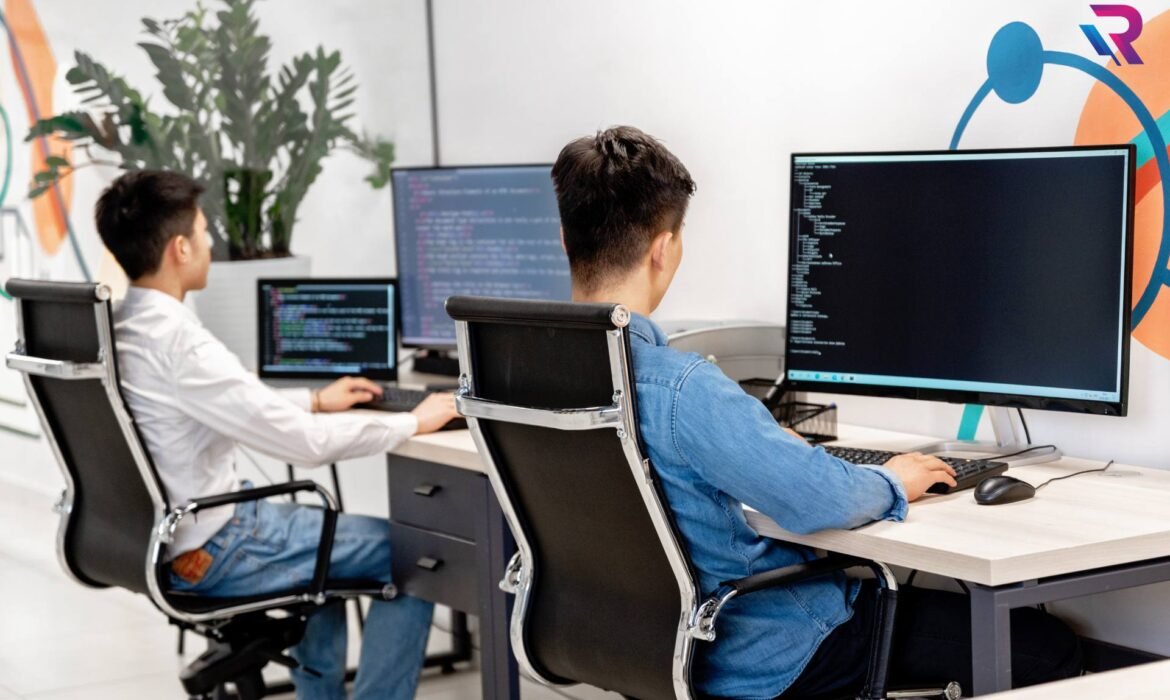
IT Equipment Rental for Corporate Offices – Laptops, Desktops & MacBooks
Introduction to IT Equipment Rental for Modern Offices
In today’s fast-changing business environment, companies need flexible, scalable and cost-effective technology solutions to stay competitive. Corporate offices rely heavily on laptops, desktops and MacBooks to run daily operations, manage teams, and deliver results. However, purchasing IT equipment in bulk requires a high capital investment and long-term maintenance responsibility. IT equipment rental services provide a practical alternative, allowing businesses to access high-performance devices on flexible rental plans without heavy upfront costs. This approach is becoming increasingly popular among startups, SMEs and large enterprises across India.
Why Corporate Offices Prefer Renting IT Equipment
Corporate organizations are shifting towards rental models because they offer flexibility, cost control and easy scalability. When businesses rent laptops, desktops and MacBooks, they avoid large capital expenditure and instead convert it into predictable monthly operational expenses. This allows better financial planning and helps companies allocate funds toward business growth, hiring and marketing. Renting also ensures that companies always use updated hardware without worrying about depreciation or resale value.
Laptop Rentals for Corporate Teams
Laptops are essential for employees working in office environments, hybrid roles or remote setups. Renting laptops allows companies to provide employees with the latest configurations suitable for their job roles. From basic office work to high-end software development and design tasks, rental providers offer a wide range of laptop configurations. Corporate teams benefit from standardized systems, improved productivity and minimal downtime when using rented laptops with support services included.
Desktop Rentals for Office Infrastructure
Many corporate offices still rely on desktop computers for stable performance, security and long working hours. Desktop rental services provide reliable systems for departments such as finance, operations, data entry and customer support. Renting desktops in bulk ensures uniform hardware configuration, making IT management easier and reducing compatibility issues. Businesses can set up full office workstations quickly without the delays associated with purchasing and installing new systems.
MacBook Rentals for Executive and Creative Teams
MacBooks are widely used by creative professionals, designers, video editors and corporate executives who require premium performance and seamless user experience. Renting MacBooks allows companies to provide high-end Apple devices to their teams without a large investment. This is especially useful for marketing agencies, media companies and design departments that need powerful systems for content creation and professional presentations.
Cost Efficiency and Budget Control
One of the biggest advantages of IT equipment rental is cost efficiency. Buying laptops, desktops and MacBooks involves not only the purchase cost but also maintenance, upgrades and replacement expenses. Rental services include maintenance and technical support within the plan, reducing additional costs. Monthly rental payments are predictable, helping finance teams manage budgets effectively. This makes rental solutions ideal for both growing startups and established enterprises.
Flexible Rental Plans for Corporate Needs
Corporate offices have different technology requirements depending on team size, project duration and operational goals. IT equipment rental providers offer flexible plans that can be customized for short-term, long-term or project-based needs. Businesses can rent devices for a few weeks, months or years, depending on their requirements. This flexibility ensures that companies only pay for what they use and can easily scale up or down as needed.
Quick Deployment and Installation
Time is critical for corporate operations. Delays in setting up IT infrastructure can impact productivity and project timelines. IT equipment rental services provide quick delivery and installation, ensuring that offices are fully operational within a short time. Whether it is a new office setup, a new team onboarding or an expansion project, rental providers handle the logistics, configuration and setup of devices efficiently.
Scalability for Growing Businesses
As businesses grow, their technology needs evolve. Hiring new employees or launching new projects often requires additional devices. IT equipment rental allows companies to scale their infrastructure quickly without going through lengthy procurement processes. Businesses can increase or decrease the number of rented devices as required, making it a highly scalable solution for dynamic work environments.
Maintenance and Technical Support Included
Managing IT equipment in-house requires dedicated resources and technical expertise. With rental services, maintenance and support are included in the package. If any device faces a technical issue, the rental provider offers quick repair or replacement, ensuring minimal disruption to business operations. This allows internal IT teams to focus on strategic tasks instead of routine hardware management.
Standardization and Better IT Management
Standardized hardware is important for smooth business operations. When companies purchase devices at different times, they often end up with multiple configurations that create compatibility challenges. IT equipment rental services provide uniform devices across departments, ensuring consistent performance and easier software deployment. This simplifies IT management and improves overall operational efficiency.
Security and Data Protection
Corporate data security is a top priority for organizations. Rental devices can be configured with company-specific security protocols, antivirus software and network protection systems. Businesses can implement their own data security policies on rented devices, ensuring safe handling of sensitive information. Rental providers also ensure that devices are properly formatted and tested before deployment.
IT Equipment Rentals for Remote and Hybrid Work
The rise of remote and hybrid work models has increased the demand for flexible IT solutions. Companies need to provide laptops and devices to employees working from different locations. IT equipment rental services enable organizations to deliver devices directly to employees, ensuring they have the tools needed to work efficiently from anywhere. This supports productivity and business continuity in modern work environments.
Temporary IT Setup for Projects and Events
Corporate organizations often need additional devices for short-term projects, training programs or corporate events. Purchasing equipment for temporary use is not cost-effective. IT equipment rental services provide a practical solution by offering devices for short durations. Once the project or event is completed, the equipment can be returned, reducing long-term costs and storage concerns.
Upgrading Technology Without Extra Investment
Technology evolves quickly, and outdated hardware can slow down productivity. Renting IT equipment allows companies to upgrade to newer models without additional capital investment. Businesses can switch to the latest laptops, desktops or MacBooks as needed, ensuring that employees always have access to modern technology for improved performance.
Eco-Friendly and Sustainable IT Practices
IT equipment rental supports sustainable business practices by promoting reuse and reducing electronic waste. Instead of discarding old devices, rental providers refurbish and reuse them for different clients. This reduces environmental impact and helps organizations adopt eco-friendly IT strategies while still benefiting from high-performance equipment.
Choosing the Right IT Equipment Rental Provider
Selecting the right rental provider is essential for a smooth experience. Corporate offices should consider factors such as device quality, service reliability, support response time, pricing transparency and flexibility of plans. A trusted rental provider ensures consistent performance, timely support and customized solutions based on business needs.
IT Equipment Rental for Multi-Location Corporate Offices
Many organizations operate in multiple cities and require consistent IT infrastructure across all locations. Rental services make it easy to deploy standardized laptops, desktops and MacBooks in different branches. This ensures uniform performance and simplifies IT operations across locations, improving coordination and productivity.
Benefits for Startups, SMEs and Enterprises
IT equipment rental is beneficial for businesses of all sizes. Startups can conserve capital and focus on growth, SMEs can manage budgets efficiently and enterprises can scale operations smoothly. Rental solutions provide access to premium technology without financial burden, making it an ideal choice for modern organizations.
Future of IT Equipment Rental in Corporate India
The demand for IT equipment rental in India is growing rapidly as businesses adopt flexible and cost-effective technology solutions. With the rise of hybrid work, digital transformation and project-based hiring, companies are increasingly choosing rental models over ownership. This trend is expected to continue as organizations seek agile and scalable IT infrastructure.
Conclusion: Smart IT Strategy for Corporate Success
IT equipment rental for corporate offices offers a powerful combination of flexibility, cost savings and operational efficiency. By renting laptops, desktops and MacBooks, businesses can access modern technology, scale their operations and reduce financial burden. With quick deployment, maintenance support and flexible plans, IT rental services provide a smart and future-ready solution for corporate success.

